QuickBooks Desktop to QuickBooks Online Migration: 2026 Checklist and What Actually Breaks
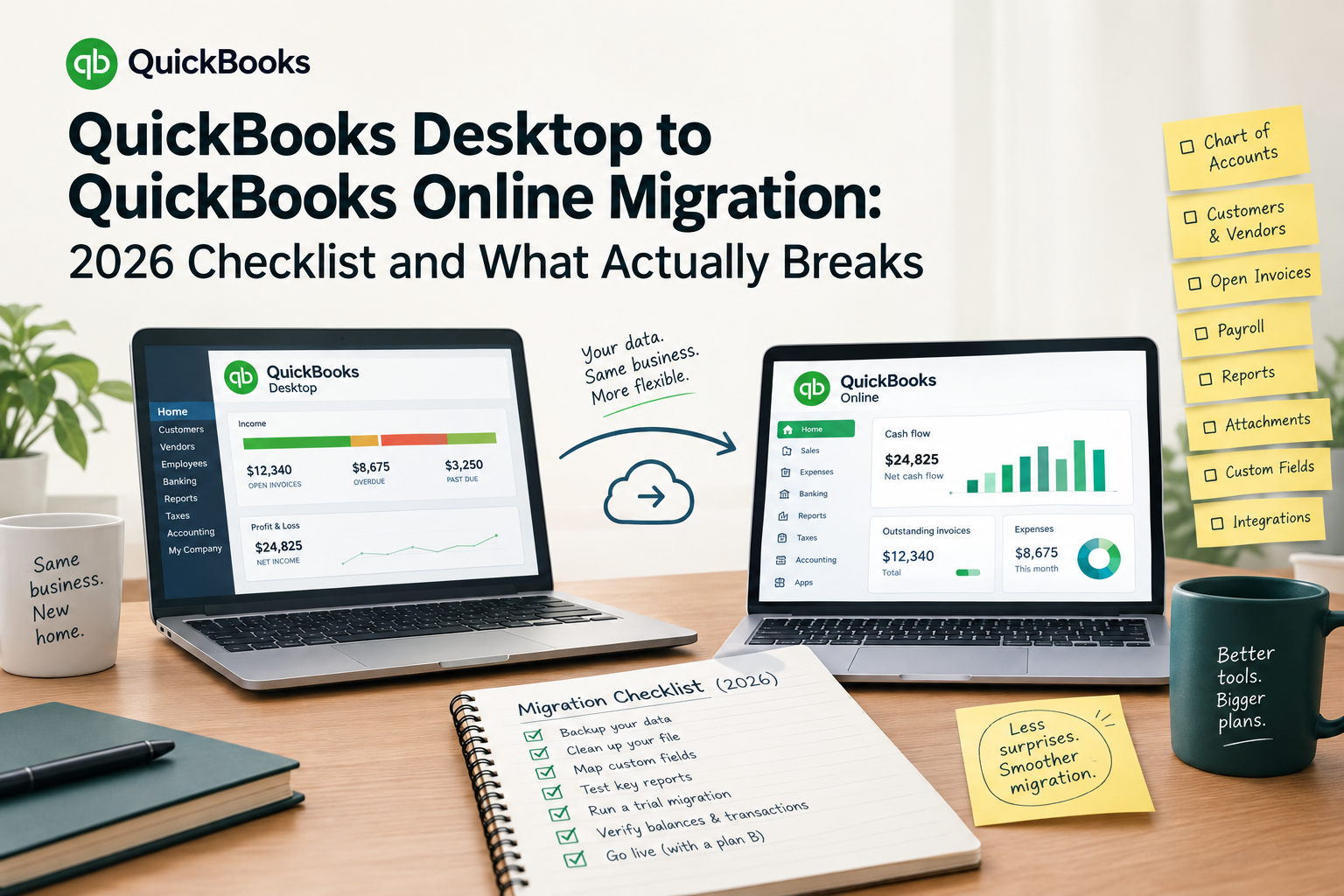
Key takeaways
- QuickBooks Desktop 2023 lost Intuit support on 31 May 2026, so affected businesses need a migration plan.
- Know what generally transfers and what does not before you start.
- Inventory costing, payroll, reconciliation history and reporting are the areas most likely to break.
- Validate after migration, and know when not to use the native tool.
Quick answer
QuickBooks Desktop 2023 - including Pro Plus, Premier Plus, Mac Plus and Enterprise 23.0 - lost Intuit support on 31 May 2026. Payroll tax tables froze, bank feeds stopped, payment processing ended and security patches ceased. The software still opens and still runs locally; it simply no longer connects to anything or updates.
Desktop 2024 remains supported into 2027, and Enterprise has no announced end date. Intuit stopped selling new Desktop subscriptions to new US subscribers in 2024.
The native migration path is Company menu → Export Company File to QuickBooks Online. The transfer itself takes roughly 30 to 90 minutes for a typical file. A migration done properly takes two to three weeks, because the real work is reconciling before the move and validating every balance after it.
Five things reliably do not survive: past reconciliation reports, memorised reports, budgets, custom templates and the audit trail. Payroll history converts as lump-sum checks without payroll item detail. Inventory converts to FIFO, which can require filing IRS Form 3115.
Where the deadlines stand
|
Version |
Support status |
What you lose |
|
Desktop 2022 and earlier |
Unsupported |
Everything connected - payroll, feeds, payments, patches |
|
Desktop 2023 (Pro Plus, Premier Plus, Mac Plus, Enterprise 23.0) |
Support ended 31 May 2026 |
Payroll tax tables, bank feeds, QuickBooks Payments, security updates, Intuit support |
|
Desktop 2024 |
Supported into 2027 |
- |
|
Enterprise (current) |
No announced end date |
- |
Verify current dates against Intuit's published schedule before acting - the annual service discontinuation calendar moves.
Two points businesses commonly get wrong.
The cutoff is universal, not tied to your renewal. Every Desktop 2023 user lost service on the same date regardless of when their individual subscription renews. Your renewal date governs software access; the service date governs connected functionality.
Nothing happens automatically. Intuit sends a notification but does not upgrade or migrate anything on your behalf. If you did nothing, your file still opens - which is exactly the problem. The failures are silent. Payroll withholding calculated on a frozen 2026 tax table will be wrong, and nothing on screen will tell you.
How the native migration works, and its hard limit
In Pro and Premier, the export sits under the Company menu. Enterprise uses a different key sequence to reach it.
The constraint most businesses hit is the target limit. QuickBooks Online has a ceiling on the number of "targets" - broadly, transaction lines plus list elements - that can be imported. Files above the limit cannot be migrated with the native tool as-is.
Check your target count in Desktop before planning anything else. If you are over, your options are:
- Condense the file to compress historical detail into summary journal entries, then migrate.
- Migrate lists and balances only, starting fresh in QBO with opening balances as at a cutover date, and retaining Desktop read-only for history.
- Use a third-party migration service that can handle larger files.
Option 2 is what most firms choose for large files, and it is often the better outcome anyway. Carrying eleven years of transaction detail into a new system rarely earns its cost.
There is also a 60-day window in which a newly created QBO company can be overwritten by an import. After that, you cannot import over existing data - you would need a fresh QBO company. Do not create the QBO company months in advance of the migration.
What transfers and what does not
Generally transfers
- Chart of accounts
- Customers, vendors and employees (as lists)
- Invoices, bills, payments, credit memos
- Journal entries
- Items, converted to QBO products and services
- Account balances
- Reconciled status on transactions
Does not transfer
|
Item |
What happens |
What to do first |
|
Past reconciliation reports |
Lost. Reconciled status carries on transactions, but the reports themselves do not |
Export every historical reconciliation report to PDF |
|
Memorised reports |
Lost entirely |
Export each to PDF or Excel; rebuild the critical ones in QBO |
|
Budgets |
Do not transfer |
Export to Excel, re-enter in QBO |
|
Custom invoice and form templates |
Do not transfer |
Screenshot each, rebuild in QBO's template editor |
|
Audit trail |
Does not carry |
Export if you have any reason to need historical audit evidence |
|
Attachments |
Do not migrate |
Download in bulk from the Desktop attachments folder |
|
Price levels |
Not supported in QBO in the same form |
Document and reimplement, often via item-level pricing or a third-party app |
|
Payroll detail |
Historical paychecks convert as regular checks; payroll item breakdown and deduction detail are lost |
Export every payroll report before cutover |
|
Prior-year payroll YTD totals |
Do not transfer reliably |
Export per-employee YTD; re-enter manually in QBO Payroll |
|
Closing date and password |
Not carried |
Reset in QBO immediately after migration |
The recurring instruction in that right-hand column is the whole lesson: export it to PDF before you migrate, because afterwards it does not exist. Keep the Desktop file accessible for at least one full tax year regardless.
The four things that actually break
1. How Does Inventory Costing Break, and Could Form 3115 Apply?
QuickBooks Desktop uses average cost. The native migration tool defaults inventory to FIFO in QuickBooks Online. That is a change in method of accounting for inventory, and it can require filing IRS Form 3115, Application for Change in Accounting Method.
As of early 2026, QBO Plus, Advanced and Intuit Enterprise Suite support Moving Average Cost as a setting - but the migration tool still defaults to FIFO. If you want MAC, you configure it manually after migration and verify the valuations.
Do not treat this as a software setting. Talk to whoever signs your tax return before migrating an inventory-carrying business. Discovering this after the fact is the most expensive mistake in the whole process.
2. What Happens to Payroll in the Migration?
Payroll is the second most common source of post-migration pain. Historical paychecks arrive as plain checks with no payroll item structure, deduction detail is lost, and prior-year year-to-date figures do not come across reliably. Intuit's own documentation has been inconsistent about how much YTD data survives.
Mitigation: export every payroll report from Desktop before cutover, re-enter YTD totals per employee in QBO Payroll, and reconcile to your most recent 941 and W-2 totals before running the first live payroll. Migrate mid-quarter if you can - never mid-payroll-run.
3. Reconciliation history
Reconciled status carries on individual transactions, so QBO knows a transaction was reconciled. What it does not know is what each historical reconciliation consisted of. If you need to demonstrate to an auditor how the March 2024 bank reconciliation was composed, and you did not export it, it is gone.
Mitigation: export all historical reconciliation reports as PDFs and store them with your permanent records before migrating.
4. Reporting and the first close
Your custom reports do not come with you, and QBO's reporting engine is structured differently - it is not simply a matter of recreating the same report. Budgets are gone. Anyone who relied on a particular memorised report will find it absent on day one.
Mitigation: identify the five to ten reports the business actually uses, export current versions, and rebuild them in QBO during the validation window rather than during the first live close.
The pre-migration checklist
Start two to three weeks before the intended cutover.
Two to three weeks out
- Take a full local backup of the Desktop company file and store a copy outside the working folder.
- Check your target count against QBO plan limits. Decide on full migration, condense, or lists-and-balances.
- Reconcile every bank and credit card account through the most recent complete month.
- Clear open items: unapplied payments, unpaid bills that are actually paid, stale open invoices, negative inventory.
- Merge duplicate customers, vendors and items. Inactivate unused list entries. Migration is the cheapest moment to clean a list you will otherwise carry forever.
- Run and file a trial balance as at the planned cutover date. This is your validation baseline.
One week out 7. Export everything from the "does not transfer" table above - reconciliation reports, memorised reports, budgets, template screenshots, payroll reports, attachments. 8. Inventory your integrations. Every connected app - payments, e-commerce, expense tools, inventory systems - needs a QBO equivalent and a reconnection plan. 9. Choose the QBO subscription tier. Confirm it supports what you need: class and location tracking, multi-currency, inventory, number of users. 10. Confirm the inventory costing decision with your tax adviser.
Cutover 11. Migrate outside business hours, with nobody in the Desktop file. 12. Do not create the QBO company far in advance - remember the 60-day overwrite window.
How Do You Validate After a QuickBooks Desktop Migration?
Do not begin live work until these pass.
- Trial balance comparison. QBO trial balance as at cutover date against the Desktop baseline, line by line. Investigate every variance - do not net them.
- Bank and credit card balances against the last reconciled statements.
- AR and AP ageing against Desktop, total and by customer/vendor.
- Inventory valuation and quantities, with particular attention if costing method changed.
- Payroll YTD per employee against the last 941 filed.
- Sales tax liability by jurisdiction - QBO's sales tax centre works differently and this is a frequent source of variance.
- Bank feeds reconnected and pulling correctly.
- User access configured with appropriate permission levels.
- Closing date and password set.
Expect two to three weeks between the transfer and full confidence. Rushing this stage is precisely how businesses end up paying for remediation later.
When Should You Not Use the Native Migration Tool?
Consider a professional or third-party migration if any of these apply:
- File exceeds the target limit and you want history preserved
- Inventory-heavy operation with assemblies or advanced inventory features
- Multiple entities requiring consolidation
- Multi-currency
- Job costing, progress invoicing or construction WIP
- Books currently unreconciled or materially behind
- Any restatement or audit exposure in the periods being migrated
What it costs
|
Path |
Typical cost |
|
Native tool, DIY, clean simple file |
Free, plus 15–25 hours of internal time |
|
ProAdvisor-assisted migration |
$1,500–$5,000 |
|
Complex or large-file migration with cleanup |
$5,000–$15,000 |
|
Post-migration remediation after a botched transfer |
$2,000+ |
The remediation line is the reason the middle rows exist.
Frequently asked questions
Is QuickBooks Desktop being discontinued? Partly. QuickBooks Desktop 2023 lost Intuit support on 31 May 2026, losing payroll tax tables, bank feeds, payment processing and security updates. Desktop 2024 remains supported into 2027, and Enterprise has no announced end date. Unsupported versions still open and run locally, but all connected services stop.
What does not transfer from QuickBooks Desktop to QuickBooks Online? Past reconciliation reports, memorised reports, budgets, custom form templates, the audit trail, attachments and price levels do not transfer. Payroll history converts as plain checks without payroll item detail, and prior-year year-to-date payroll totals do not carry across reliably.
How long does a QuickBooks Desktop to Online migration take? The data transfer itself takes roughly 30 to 90 minutes for a typical file. A properly executed migration takes two to three weeks, covering pre-migration reconciliation and cleanup, the transfer, balance validation, bank feed reconnection and payroll setup.
Do I need to file Form 3115 when migrating to QuickBooks Online? Possibly, if you carry inventory. The migration tool defaults inventory costing to FIFO, and moving from average cost to FIFO is a change in method of accounting for inventory that can require IRS Form 3115. Consult your tax adviser before migrating, not afterwards.
Can I keep using QuickBooks Desktop after support ends? Yes, as an offline program. You can open the file, view data and do basic local bookkeeping. Payroll tax calculation, bank feeds, payment processing, integrations and security patches all stop. Running payroll on frozen tax tables will produce incorrect withholding.
Will my reconciliation history survive the migration? Partially. Reconciled status carries on individual transactions, but the historical reconciliation reports themselves do not transfer. Export every historical reconciliation report to PDF before migrating.
Should I migrate all my history or start fresh? If your file is near or over the QBO target limit, starting fresh with opening balances at a cutover date is usually the better outcome. Retain the Desktop file read-only for historical reference. Carrying a decade of transaction detail into a new system rarely justifies the cost and risk.
Staunch Fintech handles accounting software migrations alongside the bookkeeping that has to keep running while the migration happens - which is usually the harder half of the problem. If you are on an unsupported Desktop version, send us your target count and your last reconciled date and we will tell you which migration path fits and what it will take.
Related services and further reading
- Accounting software migration services from Staunch Fintech
- Tax return preparation services from Staunch Fintech
- IRS Small Business and Self-Employed Tax Center (external resource)
- IRS Publication 583: Starting a Business and Keeping Records (external resource)